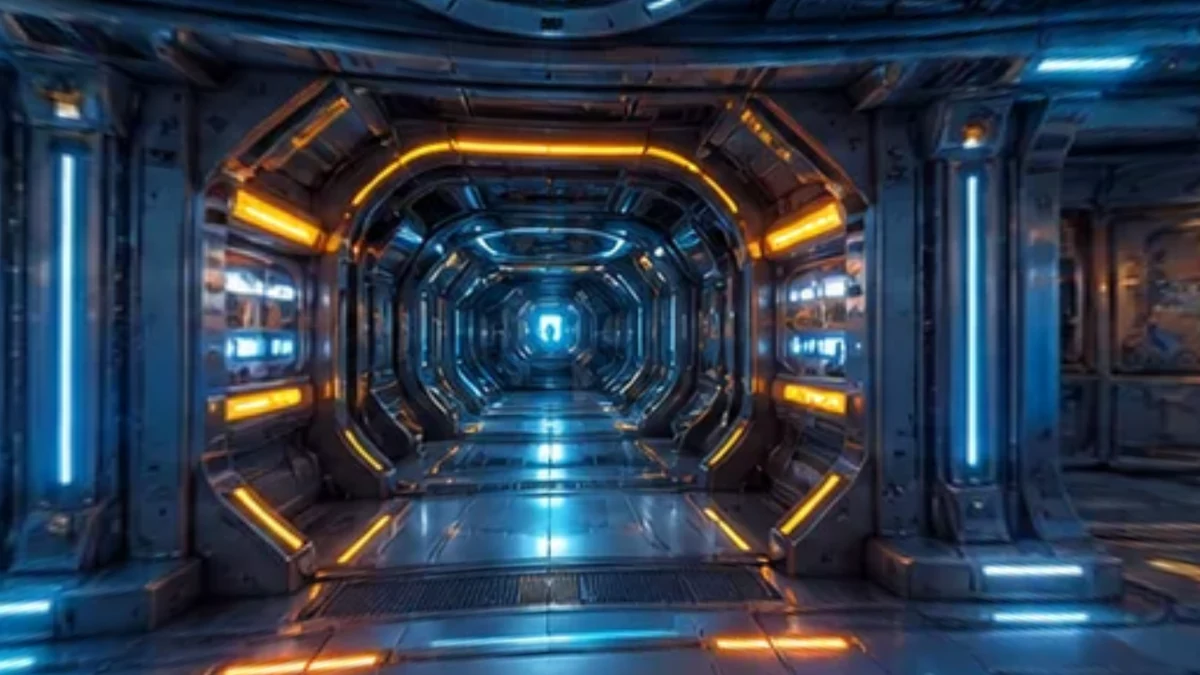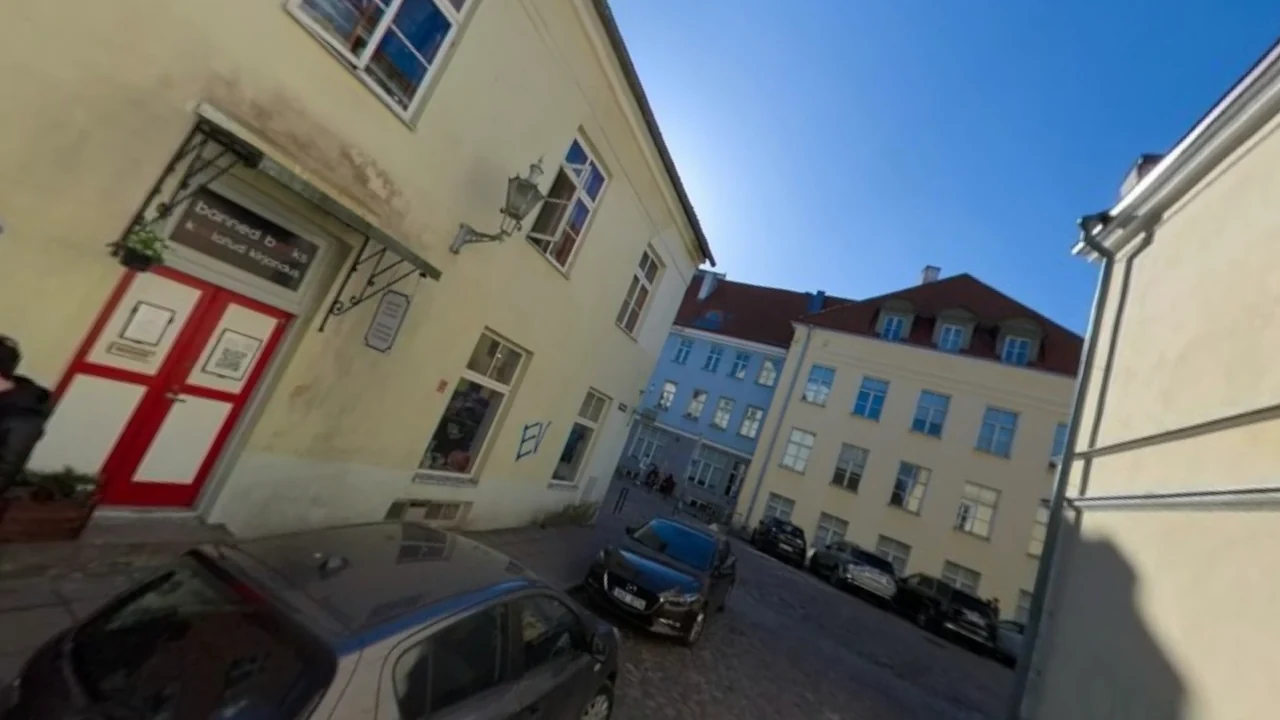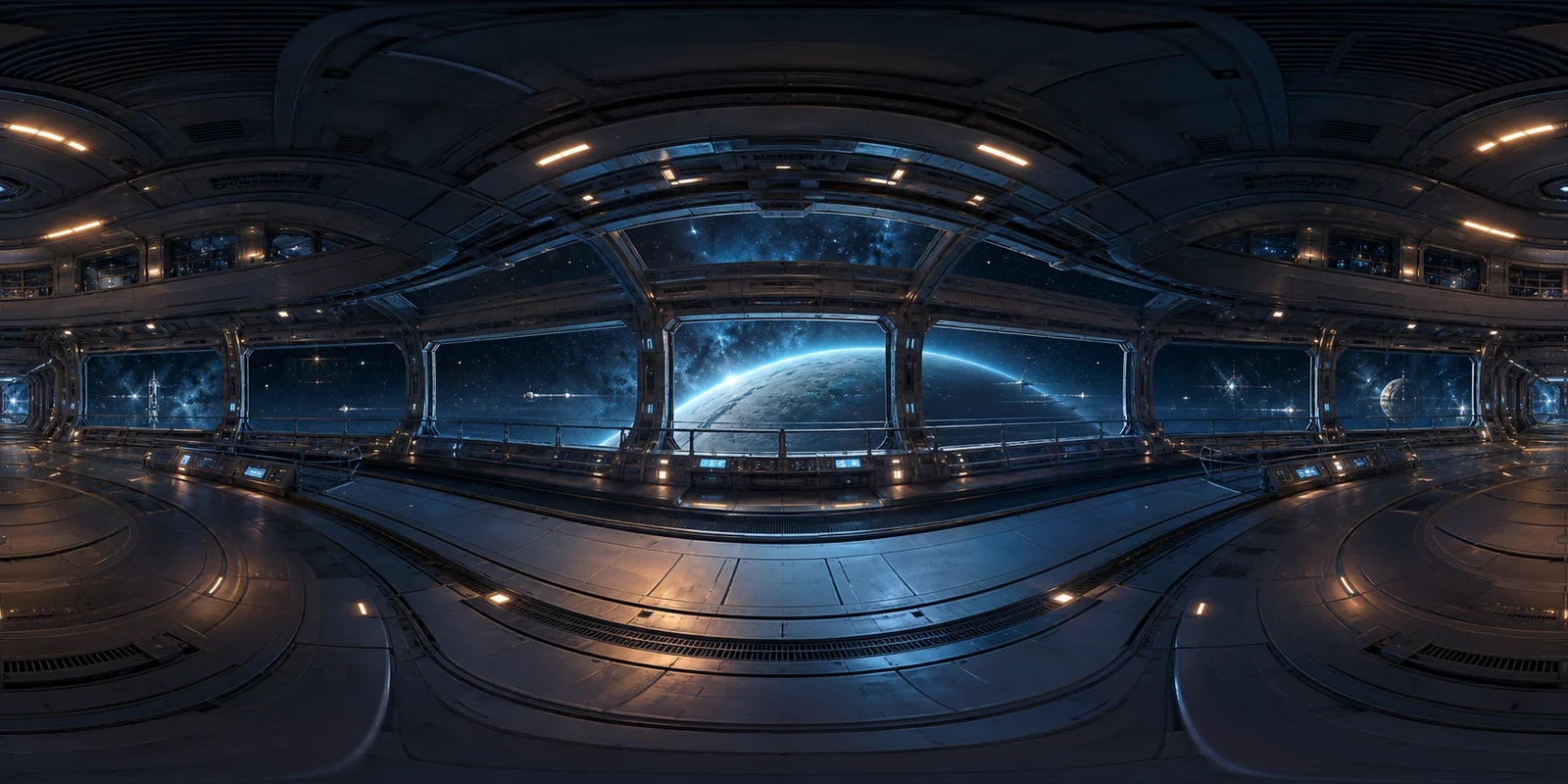
Start with your own map or artwork
The globe maker uses your existing image as its surface. For a panoramic source, check its layout in the 360 Viewer before choosing how to display it on the sphere.
Open Map to GlobeUse Map to Globe to wrap a map or photo around a sphere. Adjust rotation, tilt, lighting, and background, then export a PNG or a rotating video.
Loading tool…
See how the same map wraps around a sphere, with regions curving toward its edges. Rotate the globe to frame a place for a still image or show the complete texture in motion.
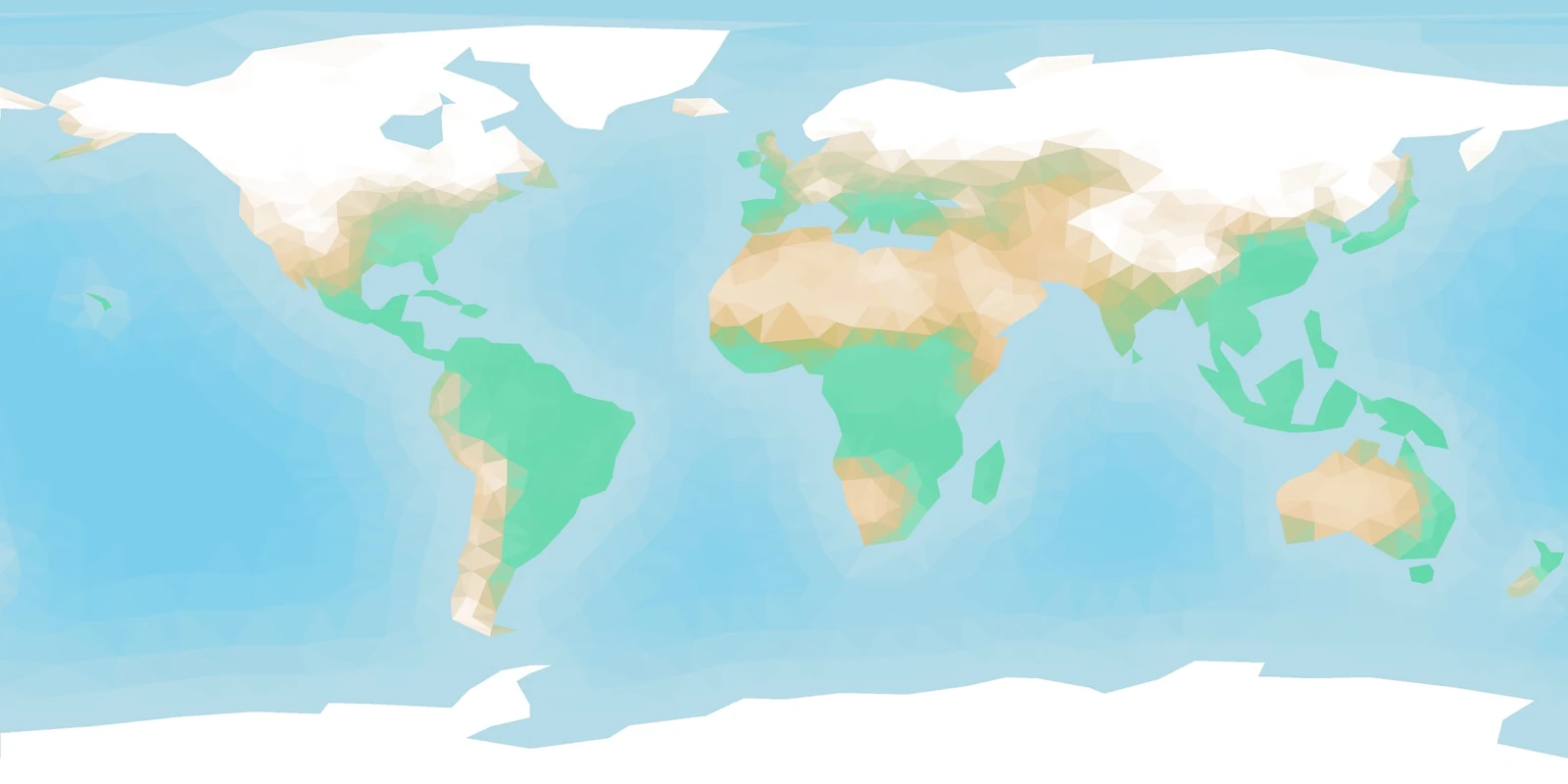
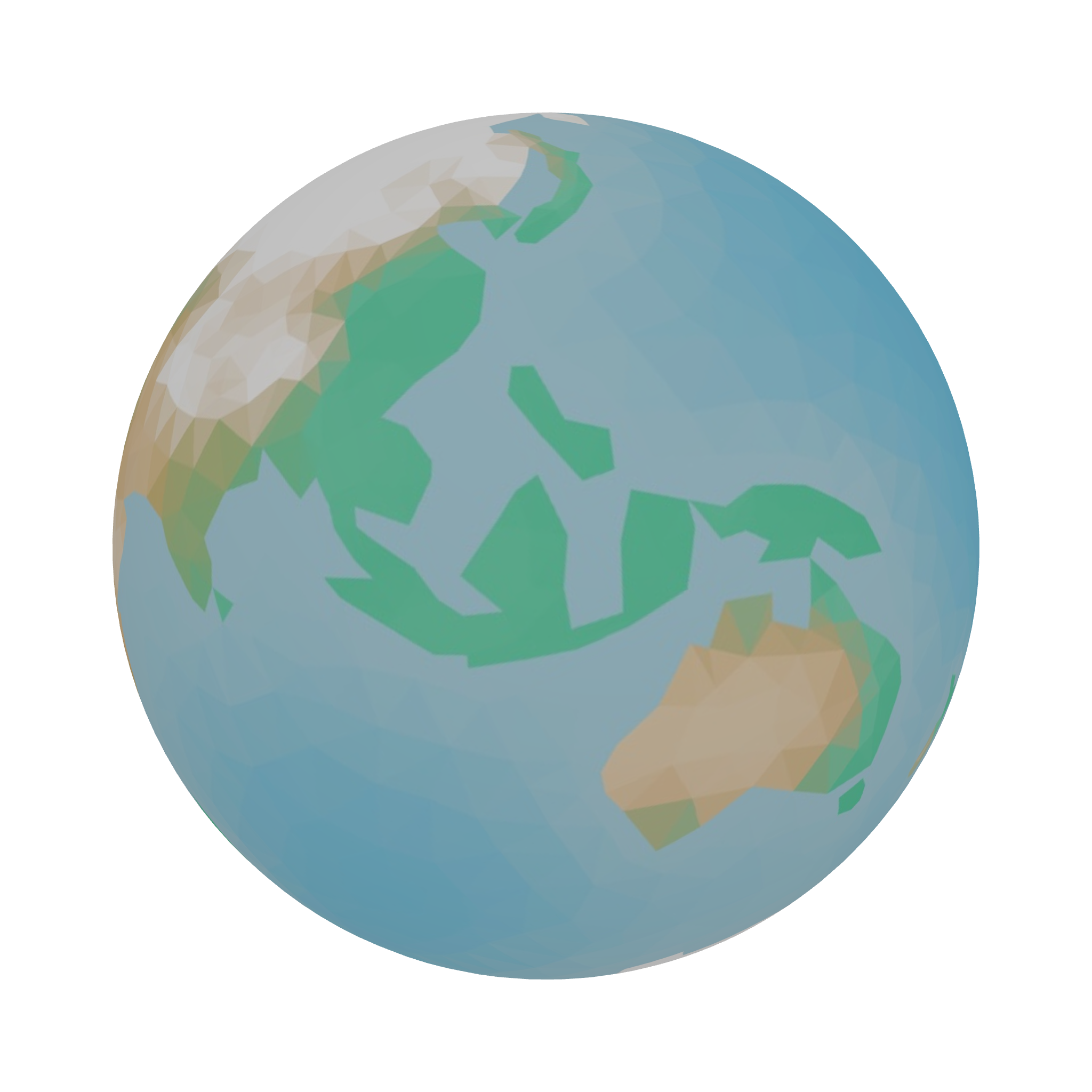
Open a map or photo in Map to Globe. A complete equirectangular world map gives the most recognizable geographic layout.
Adjust rotation, tilt, and lighting. Choose a transparent or solid background and frame the region you want to show.
Download a PNG or record a complete rotation. For video, choose the duration and resolution before exporting.
The globe maker uses your existing image as its surface. For a panoramic source, check its layout in the 360 Viewer before choosing how to display it on the sphere.
Open Map to Globe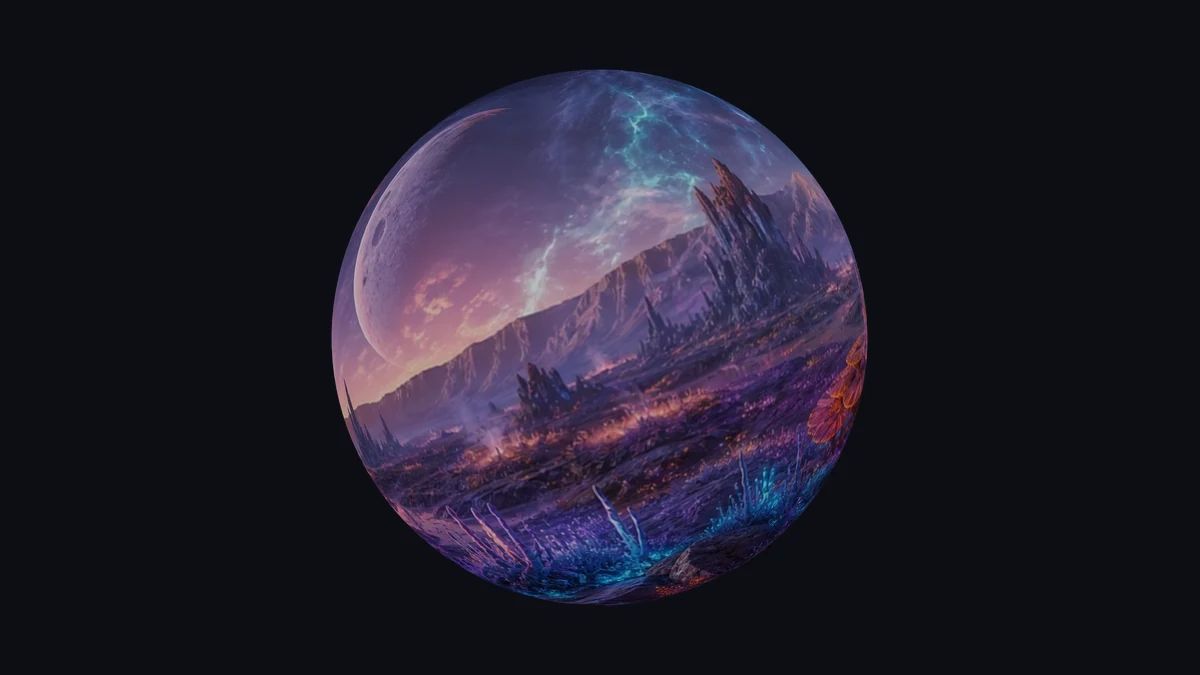
Map to Globe lets you set the opening direction and tilt to emphasize a place or part of your artwork. Choose transparency for a globe that fits into a slide, thumbnail, or graphic without a rectangular background.
Open Map to Globe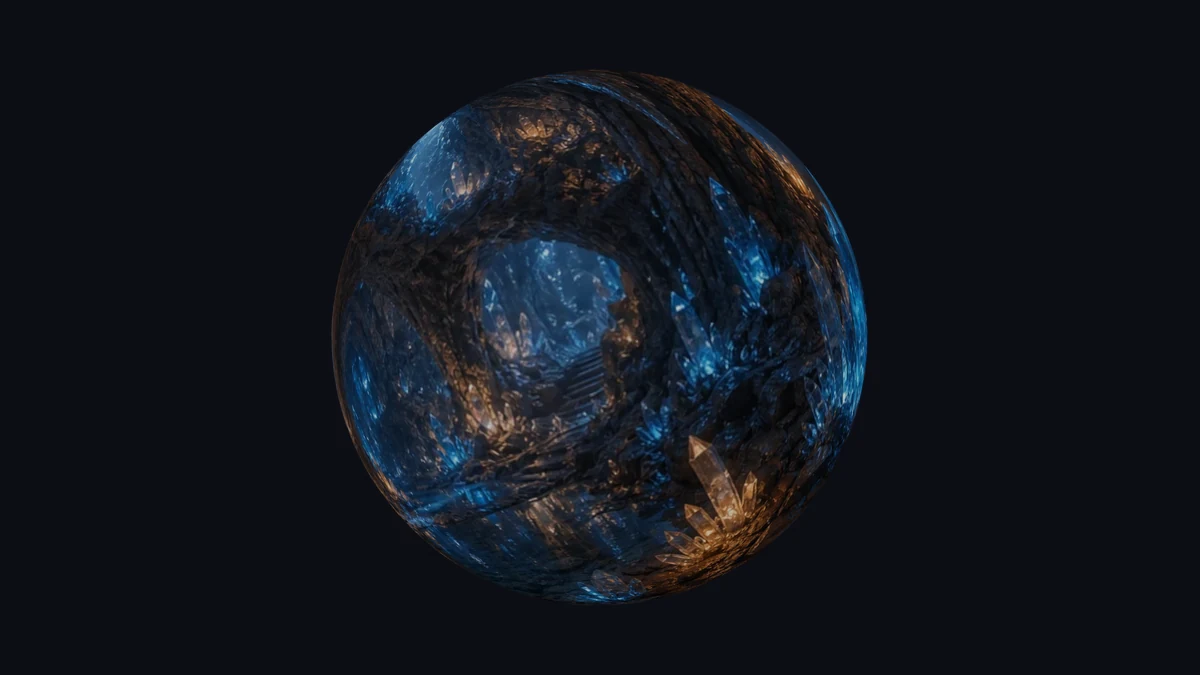
Use photo to globe conversion to present an image in motion. Record one complete rotation to reveal every side, then preview the clip before downloading it. Check the join and the opening position in the finished video.
Open Map to GlobeMap to Globe turns an existing visual into a still or moving sphere for slides, graphics, and visual explanations. Choose the framing and background to suit the layout where it will appear.
Wrap a world map, artwork, or photo. The supplied image determines what appears on the globe.
Rotate and tilt the sphere to put the region you need at the center of the frame.
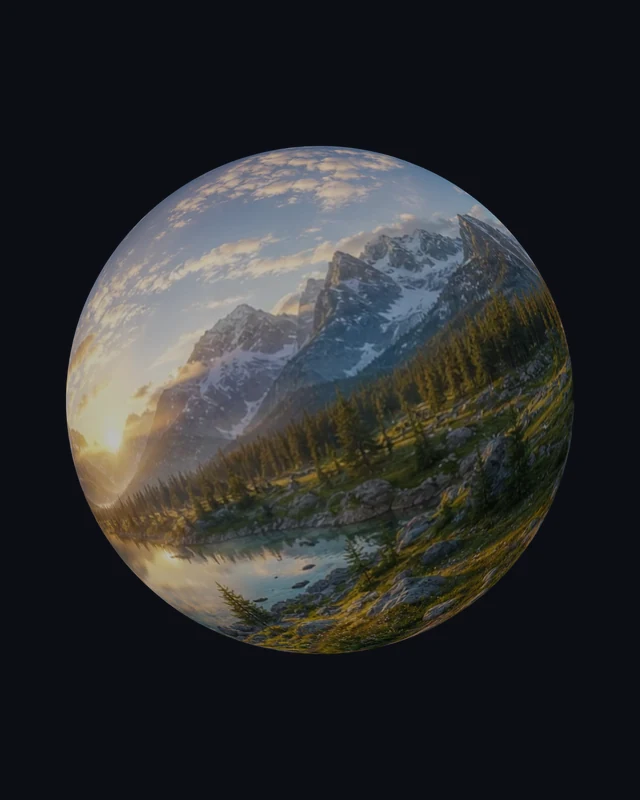
Export a transparent PNG for another layout, or use a solid background for a finished image.
Render and export in your browser without an account, generation credits, or a server upload.
It wraps your map or photo around a rendered sphere. Export the result as a PNG still or a video showing one complete rotation.
Yes. Use an equirectangular world map for recognizable geographic placement. The tool wraps the image as supplied and does not reproject maps, so other projections may look distorted. Check familiar land shapes and the poles in the spherical preview before choosing a map for your presentation.
Yes. A photo to globe conversion wraps the picture as a texture. Expect stretching near the poles and a join where the image edges meet. Rotate the preview to see where the subject sits, then choose an angle that suits the image.
The sphere supplies the shape; your image supplies its surface. It does not reconstruct the objects in a photo or recover their unseen sides.
Choose a complete world map whose left and right edges meet. Use enough detail for your intended output, and remember that small labels become harder to read on the curved surface. Inspect the region you plan to show at the size it will appear in your slide or graphic.
Yes. Choose the transparent background and export a PNG. Transparency surrounds the sphere; the map or photo remains visible on its surface. Check the exported image against your intended background to judge edge appearance and contrast.
Yes. Adjust tilt, rotation, and lighting to frame a region and give the sphere depth. These controls change its appearance without altering the source image.
The browser records MP4 where supported, with WebM as the fallback. Choose a 6, 10, or 15 second rotation at 720p or 1080p. Encoding and smoothness depend on your browser and device.
No. Processing stays in your browser, with no account or generation credits required. Download the finished result and keep your source; the session does not create a saved account project.
The left and right edges meet around the sphere. Different colors or structures make that join visible. Use a texture prepared for wrapping, or edit the source edges before exporting.

Choose a map or photo, frame the sphere, and export a still or rotating clip.
Open Map to Globe