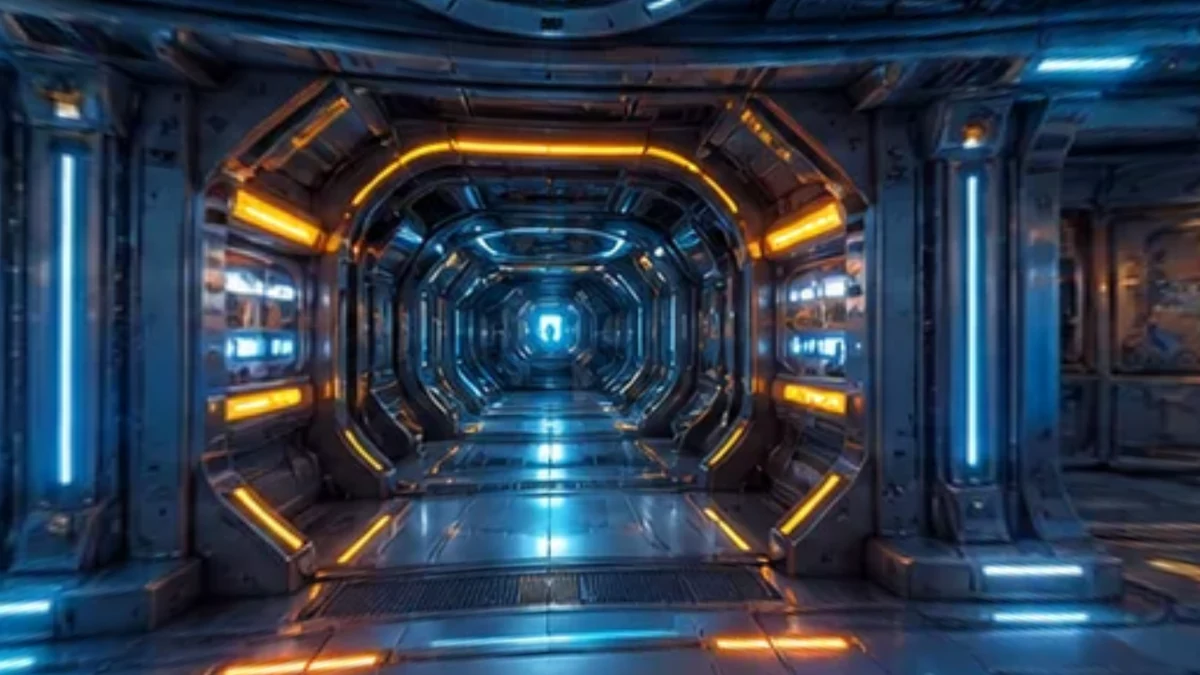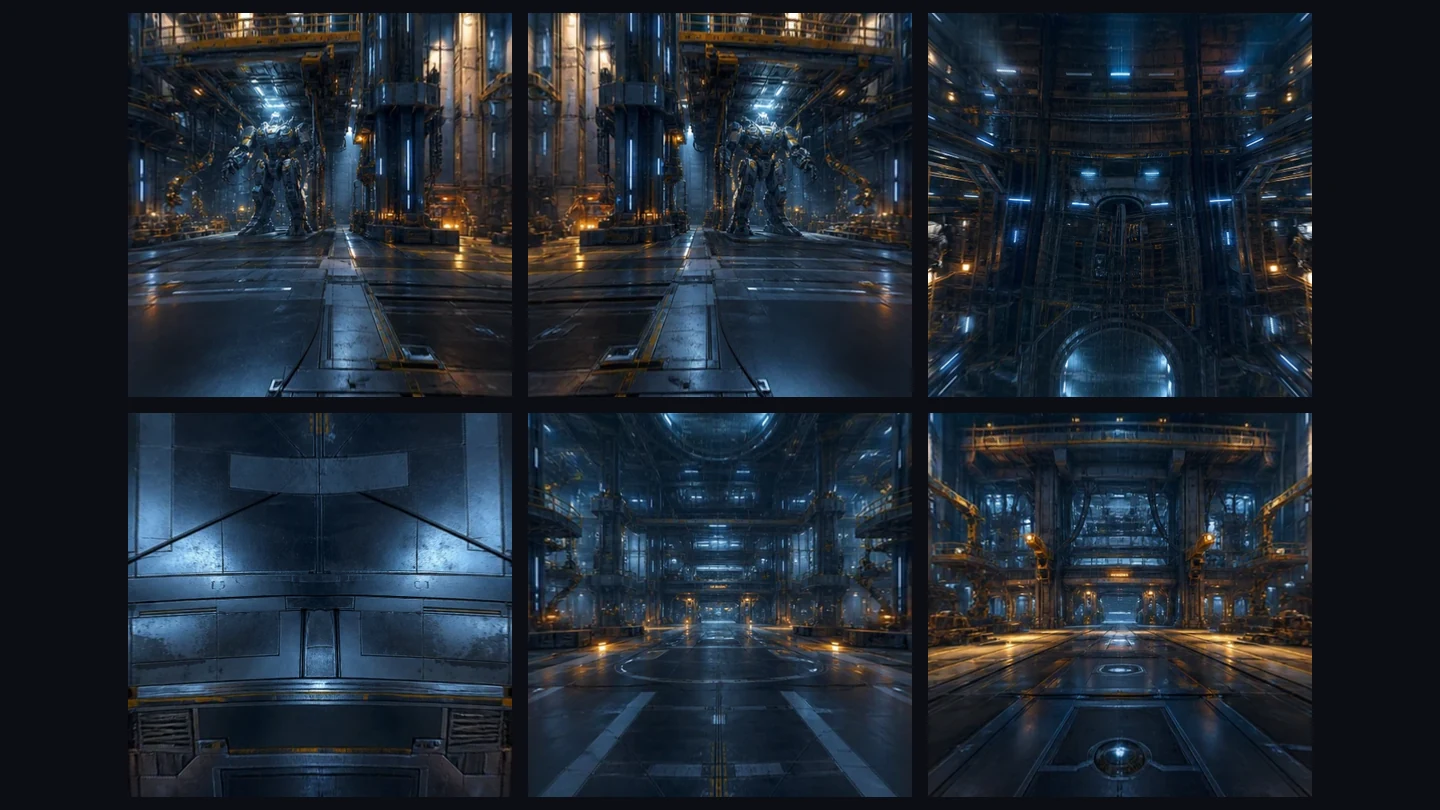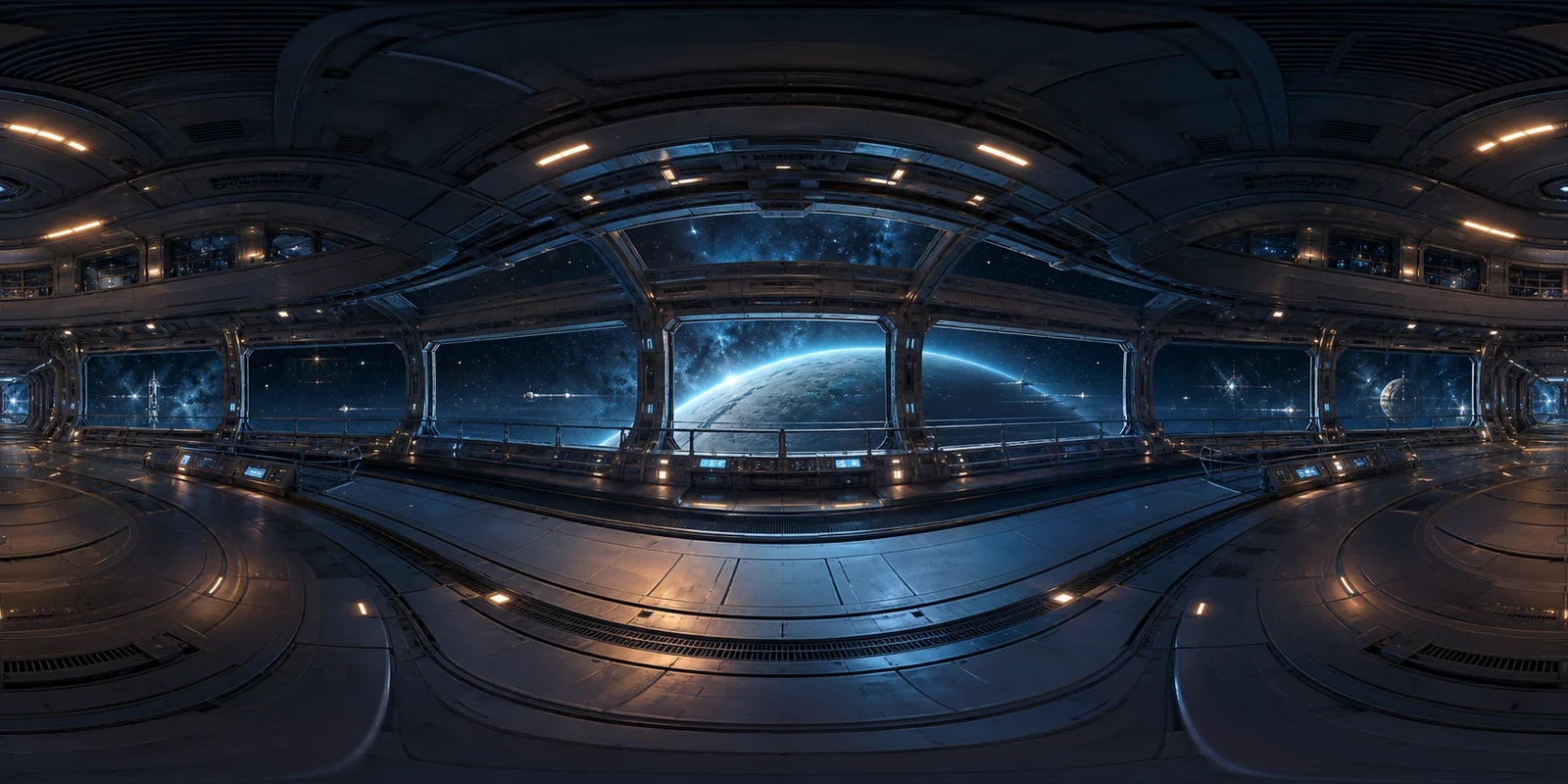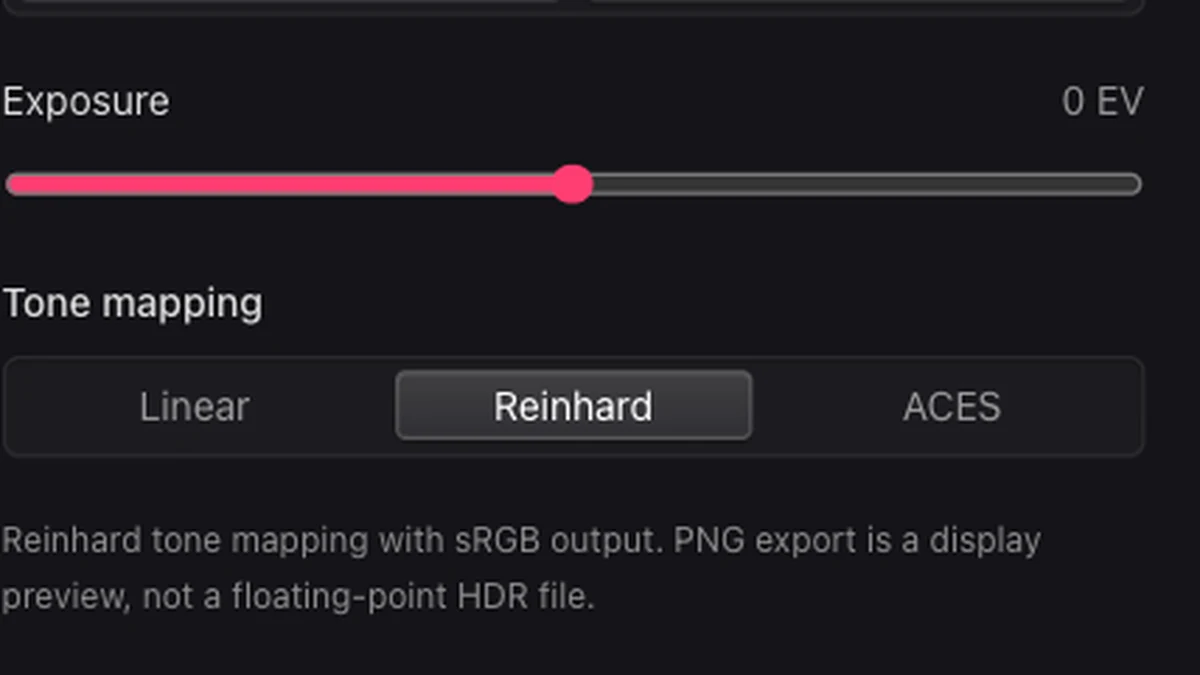
Inspect HDR and EXR sources directly
Open supported floating point environment maps without converting them to an ordinary image first. Check their content and orientation before preparing a preview for review.
Open HDR ViewerUse the HDR Viewer to open HDR or EXR environment maps in your browser. Adjust exposure, compare tone mapping, and export a PNG preview for reference or review.
Loading tool…
In the HDR Viewer, both previews use the same source at zero EV. Compare how Linear and ACES handle the bright sky and surrounding detail without an exposure change affecting the comparison.
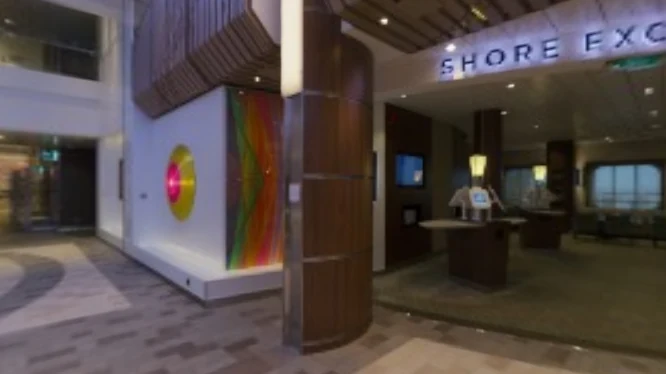
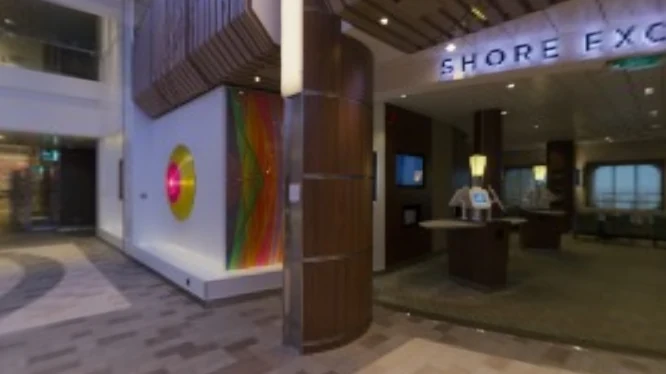
Choose a local HDR or EXR environment map in the HDR Viewer, keeping the original file on your device.
Choose Linear, Reinhard, or ACES and adjust exposure. Inspect the flat image or spherical view.
Download a tone mapped PNG. Keep the HDR or EXR source for rendering workflows that need its full brightness range.
Open supported floating point environment maps without converting them to an ordinary image first. Check their content and orientation before preparing a preview for review.
Open HDR Viewer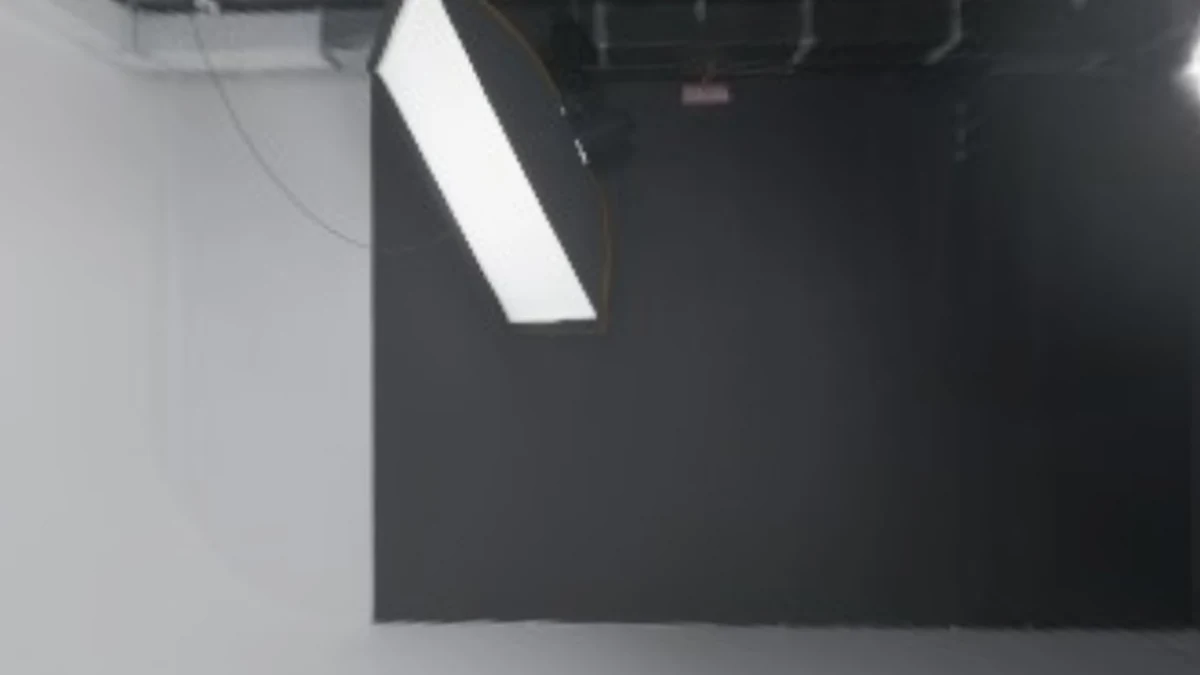
Adjust exposure to inspect bright and dark regions. Switch between Linear, Reinhard, and ACES to compare highlight detail, contrast, and the overall appearance on screen.
Open HDR Viewer
Export the displayed result as a PNG for reference or review. To split an equirectangular preview into six faces, open the Cubemap Converter with your downloaded image.
Open HDR ViewerUse the HDR Viewer to review the environment’s content, orientation, and brightness before opening the original in your rendering application. A readable preview helps you identify the file and discuss its appearance.
View HDR and EXR environment images directly, without converting them to an ordinary image before inspecting their content.
Change exposure to inspect details that one preview setting may hide in bright skies or darker areas.
Switch between flat and spherical views to check the environment’s orientation, composition, and how the source edges meet.
Decode, view, and export locally without uploading the environment map or creating an account to inspect it.
It opens supported Radiance HDR and EXR environment images, with exposure adjustment, Linear, Reinhard, and ACES tone mapping, and PNG preview export. Use it to review a downloaded environment or inspect a source before bringing it into a scene.
Yes. Use an EXR image environment map. EXR files can contain other data layouts that are unsuitable for panorama viewing, so check the decoded result and supported size limits. Confirm that the preview shows the image you expect before adjusting its presentation.
The source may contain more brightness range than a display can show at once. Lower exposure to inspect highlights or raise it to see darker regions. Move between settings to examine both, rather than judging the entire environment from a single preview.
Compare all three on your image. Linear applies exposure directly, while Reinhard and ACES compress brightness differently. Keep exposure unchanged while switching between them so you can judge the tone mapping itself. Compare highlight detail, contrast, and shadows together.
No. The PNG contains the tone mapped display preview, not the source’s floating point brightness range. Keep the original HDR or EXR for rendering and lighting.
No. It opens an existing environment map and helps you inspect it. It does not generate an environment or turn an ordinary photo into an HDR capture.
Files can be up to 80 MB, with HDR or EXR images up to 8,388,608 pixels. Working and export width is limited to 4096 pixels. These limits bound browser memory use. Resize larger environments before opening them and retain the full source separately.
Yes. Use a complete equirectangular environment for spherical viewing. Look around the horizon and examine the source boundary. Switch to the flat image to locate a detail in the original layout before deciding whether it is a projection effect or an image issue.
No. Decoding, viewing, and export happen locally, without signing in or spending generation credits. Keep the source and downloaded preview; this session does not save an account project.
No. Your renderer applies its own orientation, color handling, and lighting settings. Test the original environment in the scene where you will use it, especially when evaluating how its bright areas illuminate objects or appear in reflections.

Compare exposure and tone mapping, then export a preview for review.
Open HDR Viewer