See beyond the flat image
The 360 image viewer shows the scene as a surrounding view. Check the scale of nearby objects and the spacing of distant landmarks instead of judging them from a stretched rectangle.
Open 360 ViewerOpen a panorama in the 360 Viewer. Drag to look around, zoom into details, and capture a view. Your file stays on your device.
Loading tool…
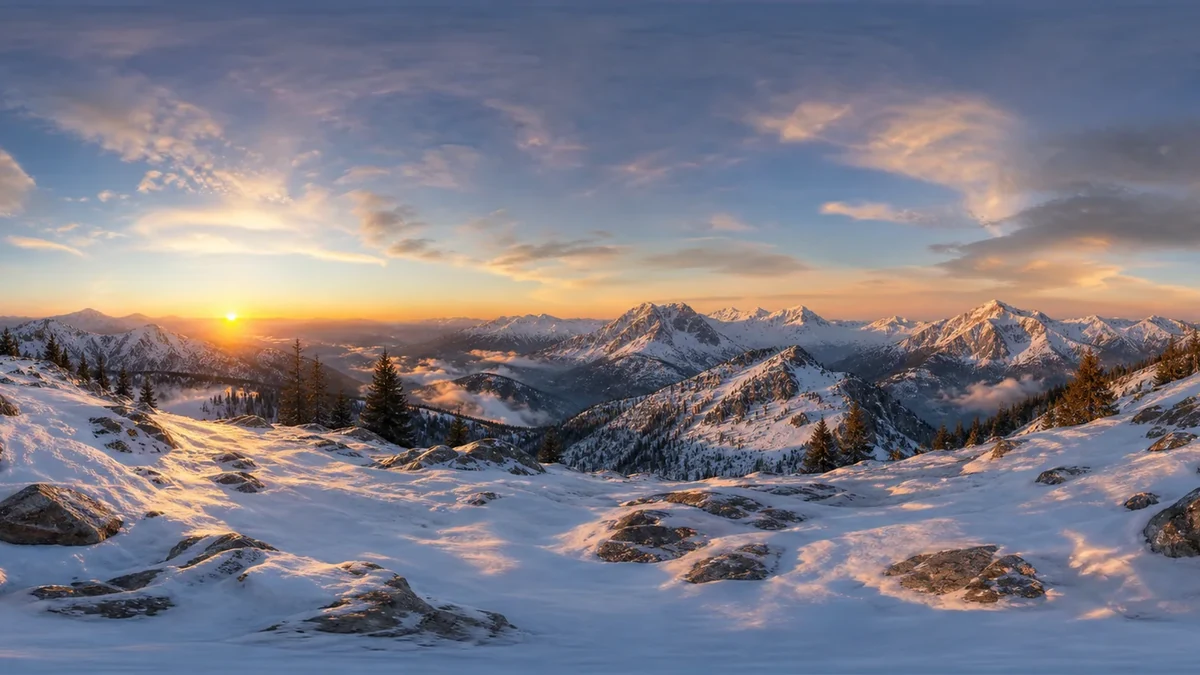
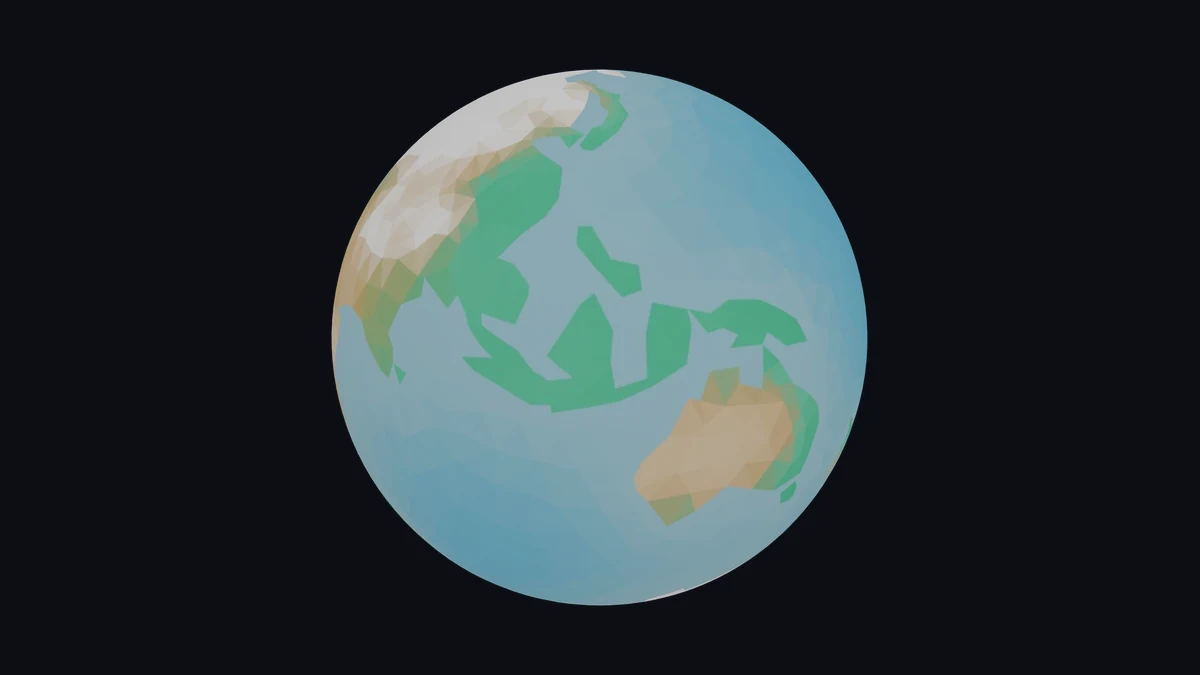
A flat panorama stretches the scene across a rectangle. The 360 Viewer maps that image onto a sphere, placing you at its center to judge the horizon, scale, and composition from a viewing position.
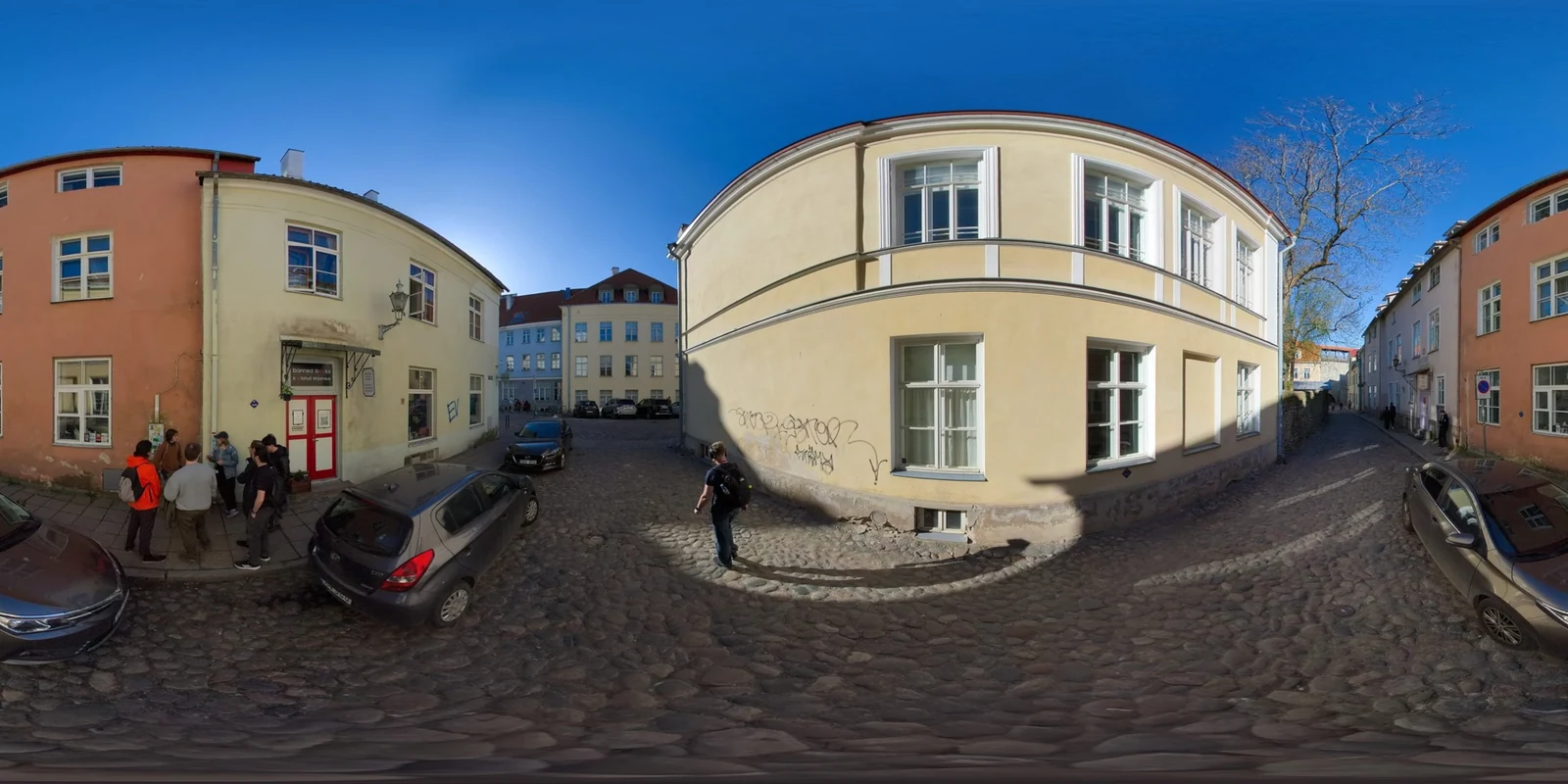
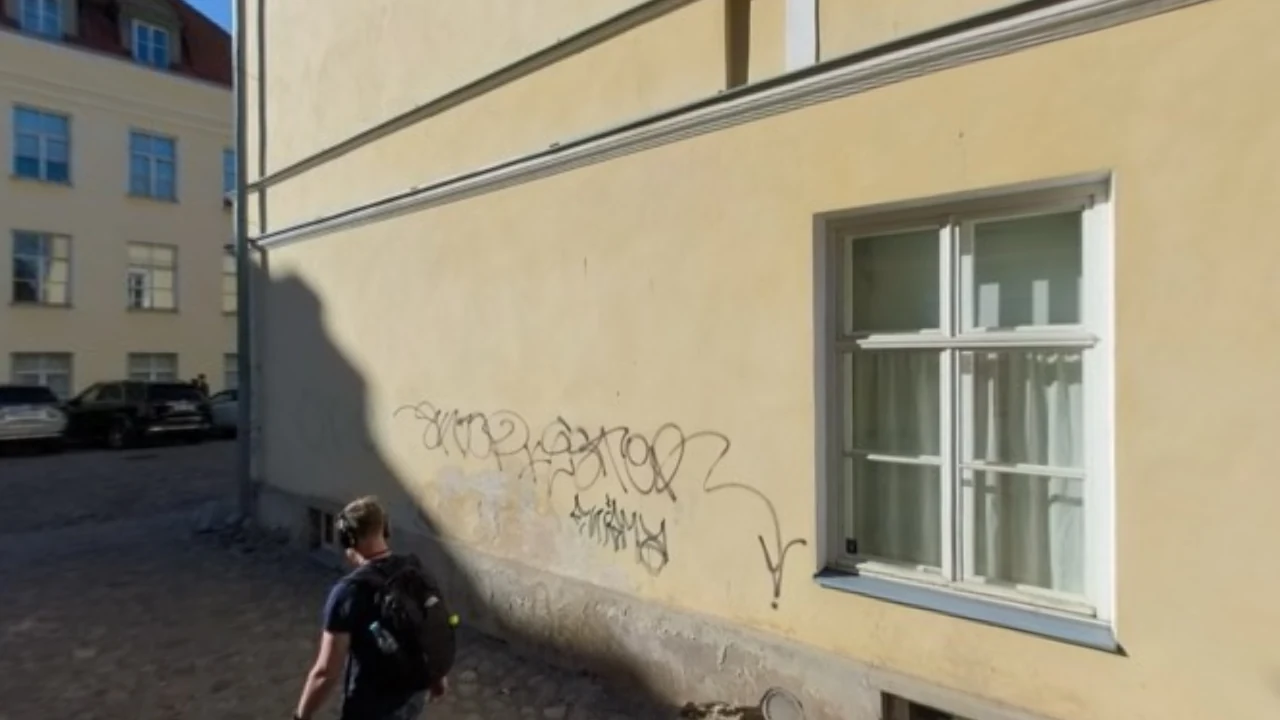
Choose a local panorama in the 360 Viewer. A complete 2:1 equirectangular image covers every direction around the viewing position.
Drag or use the arrow keys to explore. Zoom, reset, or switch to the flat image to inspect its layout.
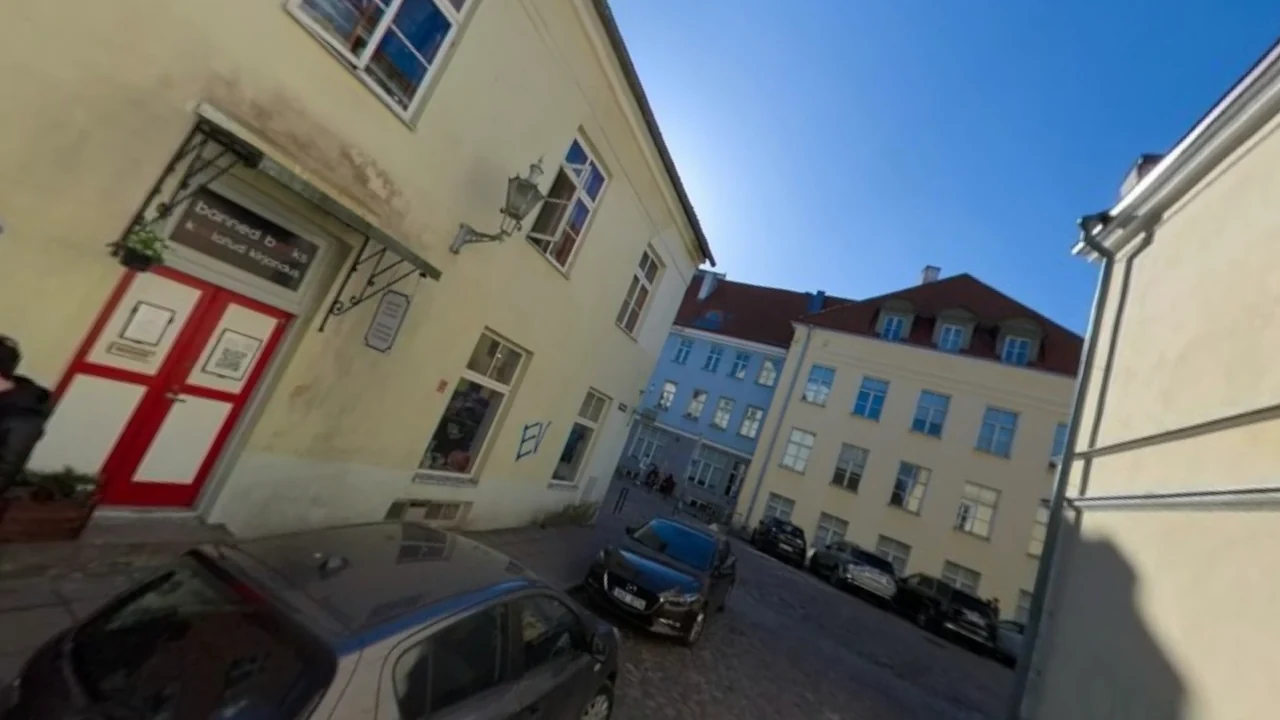
Frame a direction and capture it as an image for reference or presentation. Continue exploring to find other angles from the same panorama.
The 360 image viewer shows the scene as a surrounding view. Check the scale of nearby objects and the spacing of distant landmarks instead of judging them from a stretched rectangle.
Open 360 Viewer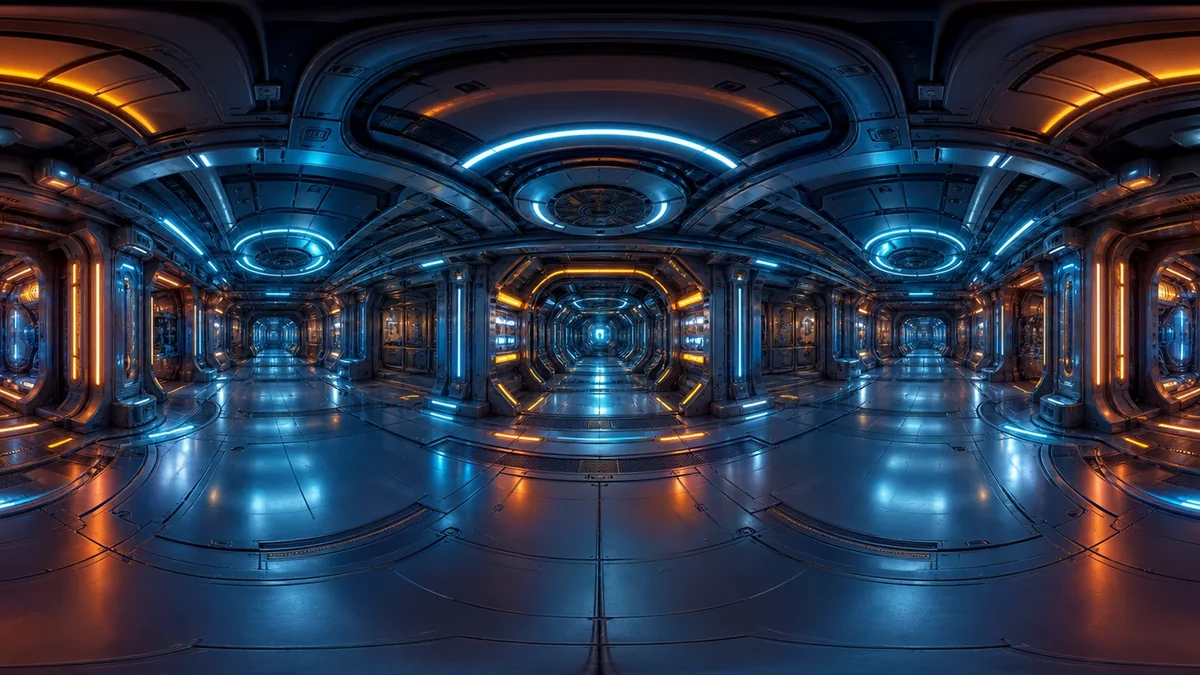
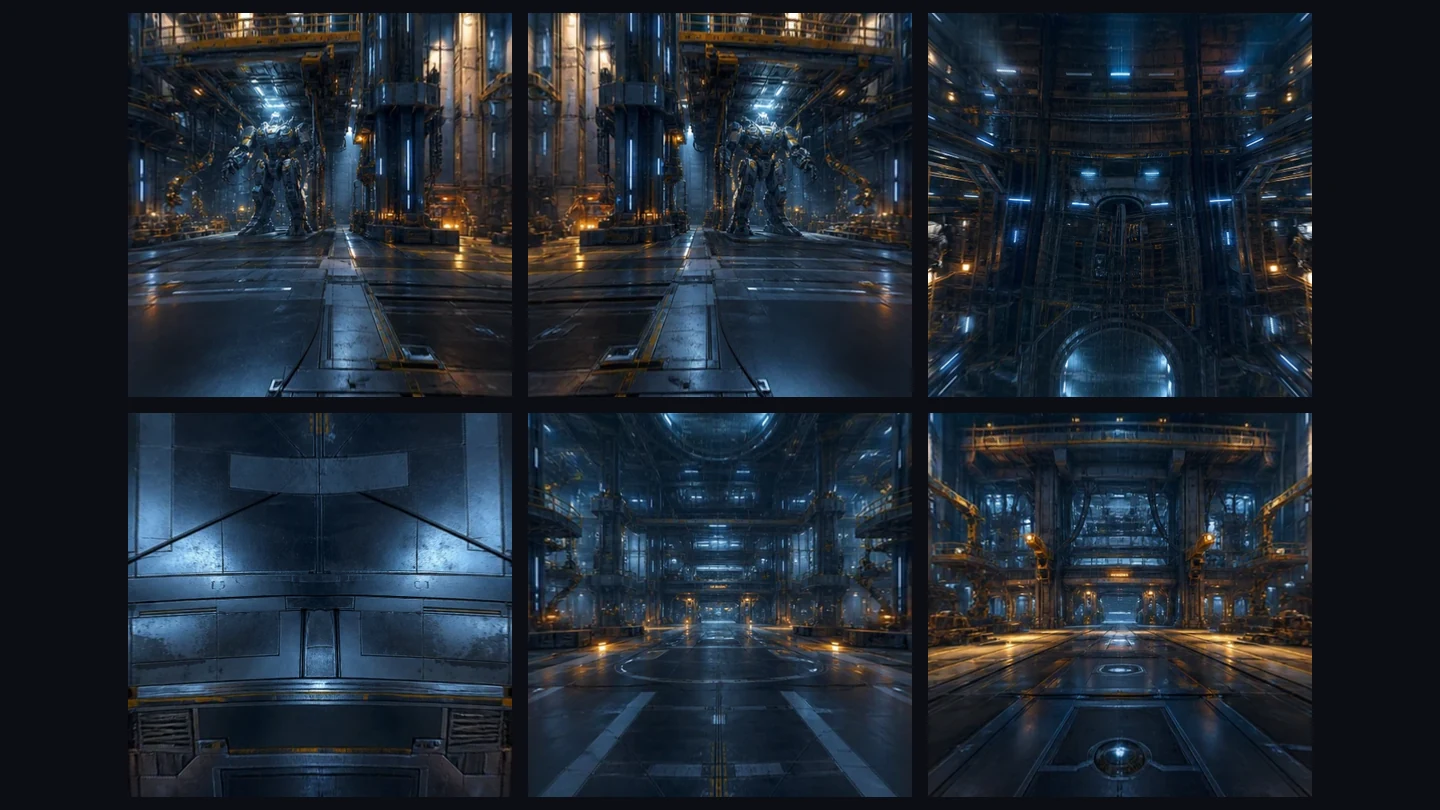
Look behind the starting view and inspect the poles. Rotate across the join between the source edges to catch mismatched landmarks or an uneven horizon before sharing or converting the panorama. Check nearby objects as well as the distant background.
Open 360 Viewer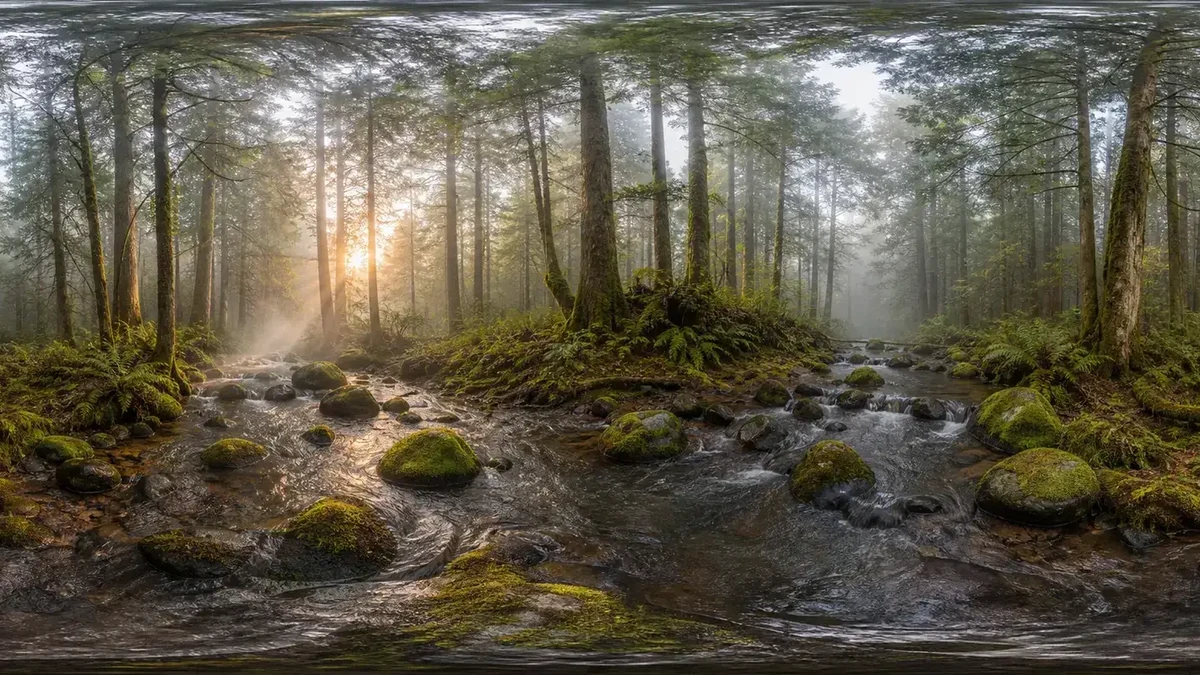
Capture a framed angle for a reference or presentation. Keep the original for spherical viewing; if another app needs projection tags, add them with the 360 Metadata Injector.
Open 360 ViewerUse the 360 Viewer to move between the complete source and a focused view. Check a composition before choosing an angle for a presentation or sending the panorama to another tool.
Drag, use arrow keys, zoom, and reset to explore a specific direction without a separate desktop application.
Switch to the flat image to locate a seam or distorted detail in the original source.
Use fullscreen, where supported, to review the panorama’s composition and inspect distant details in a larger viewing area.
Open and capture existing panoramas without signing in or spending generation credits, even when you only need one angle.
Use a complete 2:1 equirectangular panorama for a view in every direction. A level horizon and edges prepared to meet are useful starting points. An ordinary photo may load, but it cannot show parts of the scene that were never captured.
Yes. It runs in your browser, with no viewing software to install. Performance depends on image size and your device’s ability to render it. If navigation feels slow, try a smaller source while keeping the full resolution original for other work.
No. Viewing and capture happen locally in your browser. Keep the source file to reopen it later; this workflow does not save an account project. Download any captured angles you want to use in a separate document or presentation.
Equirectangular projection spreads the sphere over a rectangle, stretching the top and bottom. Check the spherical view before treating that stretching as an image defect.
It helps you find seams and horizon problems. To repair the image, return to the editor or generation workflow that created it. Then open the revised file and check the same direction again.
Yes. You can open existing panoramas, explore every direction, and capture framed views without payment, an account, or generation credits.
Drag or focus the viewing area and use the arrow keys. Zoom changes the framing, Reset restores the starting view, and autorotation turns the panorama continuously.
It saves the current framed angle as an ordinary image, useful for reference or presentation. Keep the original panorama when you need every viewing direction.
Use the dedicated HDR Viewer for HDR and EXR environment maps. It includes exposure and tone mapping controls for those files, making it possible to inspect bright and dark areas before exporting a display preview.
Inspect the join, horizon, poles, and important objects. Look around the complete scene rather than relying on its starting angle. If another app displays the panorama as a flat image, check that app’s format and projection metadata requirements.

Open a file, look around, and capture your preferred angle.
Open 360 Viewer